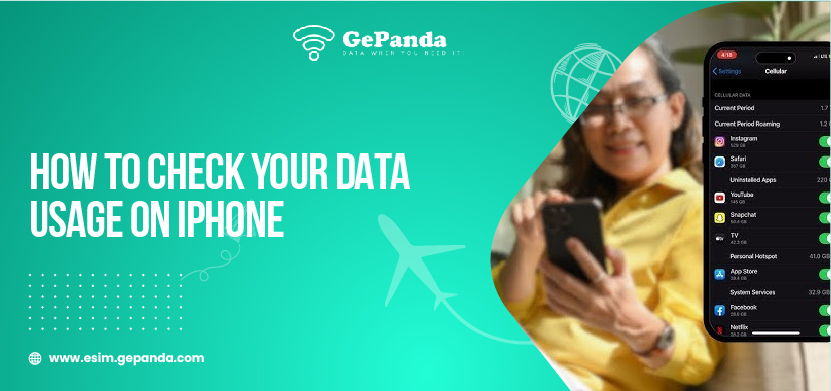

Having no data at a specific moment when traveling is its ruin. Maps stop loading. Messages fail. Uploads freeze. Being aware of how to monitor your data consumption on an iPhone is also a way of ensuring you are in control, particularly when you are using an eSIM when traveling to another country.
When it comes to GePanda eSIM, it is easy to monitor your data and make your traveling hassle-free. Here’s how to do it step by step.
Why Checking Data Usage Matters
Mobile data is lost sooner than you imagine.
Video calls, social media, and navigation applications consume more data than anticipated.
See where your data is heading and you can be able to control use, prevent delays and unwanted top-ups. This is more so helpful when one is traveling abroad.
Step 1: Go on Your iPhone Settings.
Start with the basics.
Enable your iPhone and go into Settings.
Head to the bottom and tap Cellular or Mobile Data (this can be different depending on the region).
Step 2: See Your Complete Data Usage.
As soon as you enter Cellular settings, you will be able to find a section called Cellular Data Usage.
This is an indication of the amount of data that you have consumed since the last time that the device was rebooted. It consists of browsing, applications and background.
If you’re traveling internationally, using a reliable travel eSIM can help you stay connected without worrying about roaming charges.
Step 3: Test App-by-App Data Use.
Scroll further down.
On the list, you will find a list of apps that consume mobile data.
On every app, there is a display of the data consumption. The top ones tend to be streaming, social media and navigation apps.
This will aid in knowing which applications are taking the most of your data.
Step 4: Reset Statistics for Accurate Tracking
The iPhones do not automatically erase data usage.
You have to do it manually.
Swipe to the bottom and tap Reset Statistics. You should do this at the beginning of your GePanda eSIM plan to monitor how you use it when you are on the trip.
Step 5: Check Data Usage for Dual SIM or eSIM
If you’re using an eSIM like GePanda, your iPhone may show multiple lines.
With Cellular Plans, click on the GePanda eSIM line to see its special data usage. This way you know that the right connection is being monitored as opposed to your main SIM.
Step 6: Switch off Data-Hungry Apps.
There are apps that operate in the background.
You should do it even when not in use.
You can, in the Cellular menu, switch off mobile data on cellular apps that you do not need when traveling. This assists in stretching out your information.
Step 7: Enable Low Data Mode
Low Data Mode is an obscure aid.
It lowers the activity of the background automatically.
Open the settings and go to Cellular Data Options and switch on Low Data Mode in your GePanda eSIM line.
How GePanda Assists You to be In Control.
GePanda eSIM makes the international connectivity easy.
No physical SIM swaps. No roaming surprises.
GePanda lets you track your usage on your iPhone and lets you travel with ease with clear data plans and activation, and with ease of use across a variety of countries.
FAQs
1. Does iPhone display the daily data usage?
No. iPhone displays the total usage since the last restart, and that is why it is important to perform a manual restart.
2. Is it able to track GePanda eSIM data independently?
Yes. When you have a Dual SIM, you will see the GePanda line appear under Cellular Plans, where you will see how it is being used.
3. Why does information appear to dry up?
Video calls, streaming, cloud backups, and background app refresh use more data than browsing.
4. Is resetting statistics going to interfere with my data plan?
No. It merely reinvigorates the clock on your iPhone, not the data allowance.
5. Does it have Wi-Fi data in cellular use?
No. iPhone does not combine cellular data with Wi-Fi.
Stay Connected, Stay Aware
This makes it possible to know how you use your data, so you are in control.
And the freedom means control when you are traveling.
You can easily stay online, transparently, and reliably with GePanda eSIM, so you do not need to spend time troubleshooting, but instead explore the world.